
⚠️ Affiliate Disclosure: This post is not an affiliate associated review. It may become one in the future and this disclosure will reflect that. This does not affect my reviews and I only recommend tools I genuinely believe in.
This Riverside review covers the remote recording platform that captures studio-quality audio and video locally on each participant’s device, so a wobbly Wi-Fi connection does not ruin your podcast. We look at the AI editing tools, what the free plan actually allows, and where Riverside ends and a proper editor begins.
Riverside Review
Anyone who has recorded a remote interview over Zoom knows the problem: the conversation was great, the audio sounds like a drive-through. Riverside solves this by recording each participant locally at full quality and uploading afterwards, rather than capturing the compressed call.
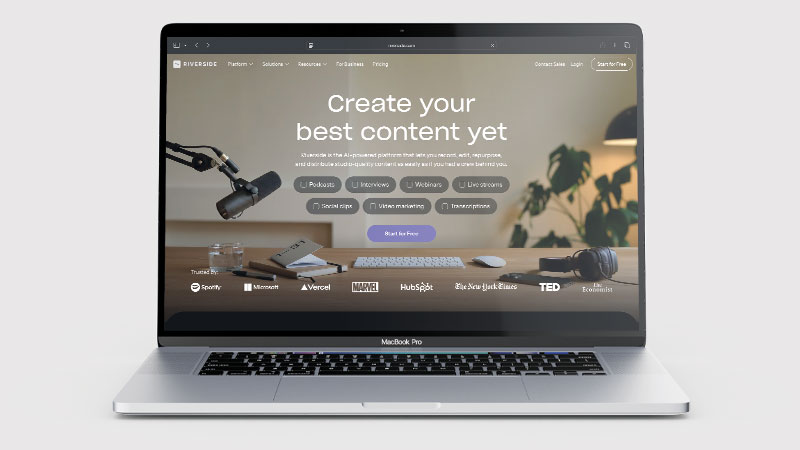
That single design decision is why podcasters recommend it. Everything else — the AI transcription, the Magic Clips, the editor — is built on top of a recording that was worth keeping in the first place.
What is Riverside?
Riverside records remote interviews with up to 4K video and lossless WAV audio, capturing separate tracks for each participant on their own device. Nothing depends on the call connection holding up.
On top of that it layers AI: automatic transcription, a Magic Editor, and Magic Clips that find shareable moments and cut them into short vertical videos for social. There is also live streaming and a mobile app.
What Can You Do With Riverside?
Riverside is a recording studio in a browser tab, built so a bad connection cannot ruin the take.
- Record locally, not over the call — Riverside captures each participant on their own device, so connection drops do not affect the file.
- Get broadcast-quality files — Riverside delivers up to 4K video and lossless WAV audio, with a separate track per person.
- Turn long recordings into clips — Riverside’s Magic Clips finds social-ready moments automatically.
- Transcribe and translate — Riverside includes AI transcription and translation in the same tool.
- Edit by editing text — Riverside lets you cut the recording by deleting words from the transcript.
- Stream live and record on mobile — Riverside includes live streaming and a mobile app.
- Use Chrome or Edge — Riverside does not work in Safari and will prompt you to switch.
Riverside Pricing
| Plan | Price (monthly) | What you get |
|---|---|---|
| Free | $0 | 2 hours/month, 720p, watermarked exports, limited Magic Clips and transcription |
| Pro | $14/mo ($12 annual) | Higher quality, more recording hours, watermark removed |
| Standard | $19/mo ($16 annual) | 5 hours, up to 4K video, 48kHz audio, no watermark |
| Webinar | $49/mo ($39 annual) | Webinar hosting and audience features |
The free plan is a genuine trial rather than a workable long-term option — two hours a month with a watermark will let you test quality but not run a show.
Pricing was restructured in July 2026, so older comparison articles may quote different tiers. Check the current page before committing to annual.
For most podcasters the Standard plan is the real entry point, because 4K and no watermark are the reasons to be here.
Riverside Review: Pros and Cons
Riverside Pros
- Local recording means connection problems do not ruin the audio
- Up to 4K video and lossless WAV, separate track per participant
- Magic Clips genuinely useful for turning long recordings into social video
- Built-in AI transcription and translation
- Live streaming and mobile app included
- Free plan is enough to test recording quality properly
Riverside Cons
- Free plan watermarks exports and caps at two hours a month
- Does not work in Safari — you are prompted to install Chrome or Edge
- Not a full editor — you will still want something else for detailed work
- Upload of local files can be slow on poor connections
- Guests need a decent browser and some patience with setup
- Pricing restructured mid-2026, so guidance online is inconsistent
- Gets expensive if you need many hours and multiple seats
Who Is Riverside For?
Riverside suits podcasters and video interviewers who care how the recording sounds — which, if you are publishing it, should be all of them.
It suits marketing teams producing interview-led content, and anyone repurposing long conversations into short social clips.
It suits less well if your recordings are internal meetings, where a note-taker is a better fit, or if you want a single tool that both records and edits to a finished state.
Key Use Cases
- Remote podcast recording — the core use case, and the one it is best at
- Video interviews — 4K separate tracks for proper post-production
- Social repurposing — Magic Clips turning an hour into a dozen shorts
- Webinars and live streams — on the higher tiers
- Client testimonials — high-quality remote capture without a crew
What Are the Downsides of Riverside?
Riverside records superbly and edits adequately. The Magic Editor handles trims, filler-word removal and clipping, but for detailed multi-track work most people export to a real editor. Pairing it with Descript is a common workflow.
Safari is not supported. This caught us out in testing: open Riverside in Safari and you are stopped and told to install Chrome or Edge instead. On a Mac that is real friction, and it applies to your guests as much as to you — anyone joining on a Mac or iPhone default browser has to switch first. Send the browser requirement with the invite, or expect to lose the first few minutes of a session sorting it out.
Local recording depends on guests’ devices and browsers. Most sessions are fine, but you will occasionally spend the first five minutes troubleshooting someone’s microphone permissions.
Free-plan watermarking means you cannot quietly use it for client work without paying.
How Does Riverside Compare to Descript?
| Riverside | Descript | |
|---|---|---|
| Recording quality | 4K video, lossless local audio | Screen and audio capture, lower ceiling |
| Editing depth | Light — trims and clips | Deep — edit video like a text document |
| Separate tracks | Yes, per participant | Limited |
| AI clips for social | Magic Clips, strong | Available |
| Entry paid plan | $14/mo | Comparable |
| Best for | Capturing the recording | Editing the recording |
These are complementary rather than competing. Record in Riverside, edit in Descript — that is what a lot of podcasters actually do. See our Descript review.
Is Riverside Good? Our Verdict
Yes — we scored Riverside 8.5/10. Recording locally on each participant device means a bad connection cannot ruin the take, and you get up to 4K video with separate tracks. The free plan watermarks exports and caps at two hours a month, and it does not work in Safari.
Riverside does the hardest part of remote content production properly. Local recording at full quality removes an entire category of problem, and once you have worked that way it is difficult to go back to recording a compressed call and hoping.
The AI layer on top is good without being the reason to be here. Magic Clips saves real time if you publish short-form video, and the transcription is solid, but the recording engine is the product.
The free plan is a demo rather than a tier, and Standard is where most people will land. For anyone publishing interview content regularly, it is money well spent.
Riverside Review Rating: 8.5/10
Every tool we review is signed up for and tested by hand. See how we test and score.
Best for: Podcasters, interviewers and marketing teams who publish remote conversations and care about quality.
Not ideal for: Internal meeting notes, or anyone wanting a single tool that records and fully edits.
Riverside Score Breakdown
| Output quality | 9/10 | Local recording means broadcast-quality audio and video regardless of connection |
| Ease of use | 8.5/10 | Straightforward to run a session; Safari is not supported |
| Features | 8.5/10 | Recording, transcription, clips and text-based editing in one place |
| Value for money | 8/10 | Free plan watermarks exports and caps at two hours a month |
| Overall score | 8.5/10 | The default choice for remote recording where quality matters |
Frequently Asked Questions
Is Riverside worth it?
For anyone publishing audio or video, yes. Riverside records locally so a bad connection cannot ruin a take, which alone justifies it against re-recording. The free plan watermarks exports and caps at two hours a month, so regular use means paying.
Does Riverside work on Safari?
No. Riverside does not support Safari — you are prompted to download and use Chrome or Edge instead. This applies to guests joining a recording as well, so it is worth telling them in advance if they are on a Mac or iPhone.
Is Riverside free?
There is a free plan with two hours of recording a month at 720p, with watermarked exports. It is enough to test the quality but not to run a show.
Does Riverside record locally?
Yes. Each participant’s audio and video is captured on their own device at full quality and uploaded afterwards, so the recording does not degrade if the call connection does.
What quality can Riverside record?
Up to 4K video and lossless WAV audio at 48kHz on paid plans, with a separate track for each participant.
Can Riverside edit my podcast?
It handles trims, filler-word removal and AI clipping, which is enough for straightforward episodes. For detailed multi-track editing most people export to a dedicated editor.
Alternatives to Riverside
Descript — The natural partner: edit video and audio like a text document. See our Descript review.
Castmagic — Turns a finished recording into show notes, social posts and newsletters. See our Castmagic review.
OpusClip — Focused purely on cutting long video into short vertical clips. See our OpusClip review.
More from WhatAITools: Descript review, Castmagic review and OpusClip review.

James is an SEO and content specialist with over 12 years’ experience, and tests AI tools so everyday people don’t have to. WhatAITools.co.uk covers honest, no-jargon reviews to help you find the right tool for your needs.
Leave a Reply